
You work hard for your paycheck, yet by the third week of the month, you might find yourself wondering where the money actually went. It is a common frustration that often stems from a lack of visibility. While dozens of fancy budgeting apps promise to automate your life, they often hide the very details you need to see to make lasting changes. This is why spreadsheet budgeting remains the gold standard for people serious about their financial health.
Using Google Sheets as a free budget tool gives you total control. You are not at the mercy of a developer’s algorithm or a subscription fee; instead, you build a system that mirrors your specific life. Whether you are trying to pay off debt, save for a home, or simply stop overspending on takeout, a manual expense tracking system forces you to confront your habits head-on. In this guide, you will learn exactly how to build a functional, professional-grade budget from scratch.

The Hidden Power of Manual Expense Tracking
Most modern financial advice suggests “linking your accounts” to an app to save time. However, automation often breeds apathy. When an app categorizes your spending for you, you rarely look at the individual transactions. You might see a bar graph showing you spent $600 on “Food & Drink,” but you don’t feel the sting of the four separate $15 lunch runs that pushed you over the limit.
Manual expense tracking changes your relationship with money. When you have to physically type “Dinner out — $85” into a cell, you process that choice. This awareness creates a natural “speed bump” for your spending. According to the Consumer Financial Protection Bureau (CFPB), regularly tracking your expenses is one of the most effective ways to build a sustainable savings habit. You start to see patterns before they become problems—allowing you to pivot mid-month rather than feeling defeated at the end of it.
“It’s not your salary that makes you rich, it’s your spending habits.” — Charles A. Jaffe

Why Google Sheets Beats Traditional Apps
Before you dive into the “how-to,” consider why you should choose Google Sheets over a dedicated app or a physical notebook. A spreadsheet offers the perfect middle ground between the portability of an app and the intentionality of a pen-and-paper ledger.
- Accessibility: You can update your budget on your laptop at home or through the Google Sheets app on your phone while standing in the checkout line.
- Customization: Your life doesn’t fit into generic categories like “Lifestyle.” In a spreadsheet, you can have a category specifically for “Dog Grooming” or “Vintage Records” if that’s what matters to you.
- No Subscription Fees: Many popular budgeting apps now cost $70 to $100 per year. That is money that should stay in your high-yield savings account.
- Privacy: You aren’t sharing your banking credentials with a third-party aggregator. You remain the sole gatekeeper of your data.
Step 1: Setting Up Your Core Structure
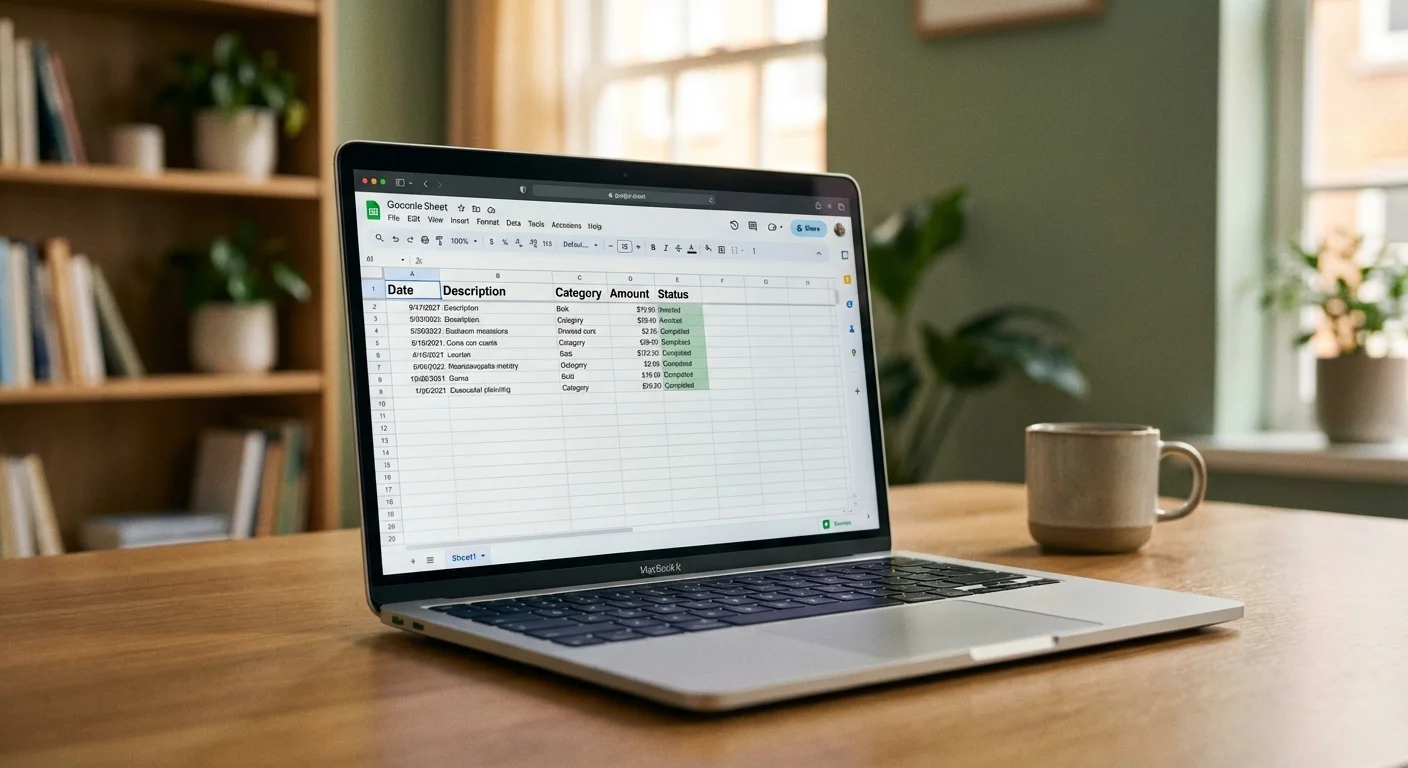
Open a new Google Sheet and title it “2026 Master Budget.” You want to create a structure that is easy to read at a glance. Start by naming your first tab “Dashboard.” This will be your high-level overview. For now, we will focus on building the “Transactions” tab, which is where the real work happens.
Create a second tab and name it “Transactions.” In the first row, create the following headers:
- Date: When the purchase happened.
- Description: Where the money went (e.g., “Kroger,” “Gas Station,” “Amazon”).
- Category: Use a dropdown menu here to keep things consistent.
- Amount: The total cost.
- Notes: Any context, like “Birthday gift” or “One-time repair.”
To make the Category column work perfectly, use Data Validation. Select the entire Category column, go to Data > Data Validation, and choose “Dropdown.” Enter your primary categories here. This ensures you don’t accidentally type “Groceries” one day and “Grocery” the next, which would break your formulas later.

Step 2: Defining Your Categories
To keep your budget manageable, you need to strike a balance between too much detail and too much generalization. If you have 50 categories, you will get overwhelmed and quit. If you have three, you won’t have enough data to make decisions.
According to the Bureau of Labor Statistics, the average American household spends the largest portions of their income on housing, transportation, and food. Use these as your anchor points. Consider these essential categories for your spreadsheet:
| Category Group | Examples of Expenses |
|---|---|
| Fixed Housing | Rent/Mortgage, Insurance, Property Taxes |
| Utilities | Electricity, Water, Internet, Phone, Trash |
| Transportation | Car Payment, Gas, Insurance, Maintenance, Public Transit |
| Food | Groceries, Dining Out, Coffee Shops |
| Health/Wellness | Gym, Medications, Co-pays, Toiletries |
| Personal/Fun | Streaming Services, Hobbies, Clothes, Entertainment |
| Financial Goals | Debt Repayment, Emergency Fund, Roth IRA Contributions |

Step 3: Implementing the Zero-Based Budgeting Method
The most effective way to use your new spreadsheet is the “Zero-Based” method. This does not mean you have zero dollars in your bank account; it means every dollar you earn is assigned a specific “job” before the month begins. If you earn $4,000 this month, your total expenses, savings, and debt payments should equal exactly $4,000.
On your “Dashboard” tab, create a small table for your Monthly Income. List your primary salary and any side hustles. Use the =SUM() formula to total these up. For example, if your income sources are in cells B2 and B3, your formula is =SUM(B2:B3).
Next, create a table for your “Planned Spending.” This is your budget—your best guess of what you will spend. As the month progresses, you will compare this “Planned” amount against your “Actual” spending, which pulls directly from your Transactions tab.

Step 4: The Magic Formula (SUMIF)
This is where your spreadsheet budgeting becomes automated. You don’t want to manually add up your grocery receipts. You want the sheet to do it for you. This is where the SUMIF formula becomes your best friend.
In your Dashboard, next to your “Groceries” planned amount, you want to see the “Actual” amount. If your Transactions tab has categories in Column C and amounts in Column D, use this formula:
=SUMIF(Transactions!C:C, "Groceries", Transactions!D:D)
This formula tells Google Sheets: “Look at the Transactions tab. Find every row where the category is ‘Groceries,’ and then add up the corresponding numbers in the Amount column.” Now, every time you add a grocery trip to your log, your Dashboard updates instantly. You can see in real-time if you are approaching your limit. For help benchmarks on food costs, you can consult the USDA Food Plans to see how your spending compares to national averages.

Where People Overspend
Even with a perfect spreadsheet, certain categories tend to sabotage budgets. Identifying these early allows you to build “buffers” into your Google Sheets budget template.
- The “Subscription Creep”: Small $9.99 charges are easy to overlook. Dedicate a specific row in your budget for “Digital Services” and audit them monthly.
- Convenience Spending: Delivery fees and service charges on food apps can inflate your food budget by 30% or more without you noticing.
- Non-Monthly Bills: Annual car registrations, quarterly insurance premiums, or holiday gifts often feel like “surprises,” but they are predictable. Create a “Sinking Fund” category in your sheet to save for these one-twelfth at a time.
- Impulse Grocery Trips: Stopping for “just two things” often leads to a $40 bill. Tracking these individual trips in your spreadsheet will highlight how much these “quick stops” cost you over a month.

Using Visuals to Stay Motivated
Numbers alone can be dry. Google Sheets allows you to insert charts that update automatically. A simple pie chart showing your “Spending by Category” can be a wake-up call. If you see that “Dining Out” takes up a larger slice of the pie than “Savings,” you have a visual incentive to adjust your behavior.
To do this, highlight your category names and your “Actual” spending totals on the Dashboard. Click Insert > Chart. Choose a Pie Chart or a Bar Chart. Position this chart prominently on your Dashboard so it is the first thing you see when you open the file. Visualizing your progress toward a goal—like a “Debt Paydown” thermometer—can provide the dopamine hit you need to stay disciplined.

When to Call a Pro
While a DIY budget in Google Sheets is excellent for day-to-day management, there are times when you might need expert guidance. If your financial situation involves complex tax issues, significant business expenses, or estate planning, a spreadsheet may only be part of the solution.
- Tax Complexity: If you are a freelancer or business owner, a CPA can help you structure your spreadsheet to maximize deductions.
- High Debt Loads: If you are struggling with overwhelming debt, a non-profit credit counseling agency can provide a structured plan that fits into your budget.
- Investment Strategy: A fee-only financial advisor can help you determine if your “Financial Goals” category is being allocated efficiently for long-term growth.

Troubleshooting Common Spreadsheet Errors
If your numbers don’t look right, don’t panic. Spreadsheet budgeting has a small learning curve. Check these three things first:
- Hidden Spaces: If you type “Groceries ” (with a space at the end) in your transaction log, the
SUMIFformula won’t count it. Use the dropdown menus mentioned earlier to prevent this. - Negative Numbers: Decide early if you will enter expenses as positive numbers (50.00) or negative numbers (-50.00). Consistency is key. Most people find it easiest to enter everything as positive numbers and let the “Income minus Expenses” formula do the subtraction.
- Range Errors: Ensure your formulas cover the entire column (e.g.,
D:D) rather than a limited range (e.g.,D1:D100). As your list of transactions grows, a limited range will stop counting new entries.
FAQs About Spreadsheet Budgeting
Is Google Sheets secure for my financial data?
Yes, provided you secure your Google account. Use a strong, unique password and enable Two-Factor Authentication (2FA). Unlike apps that link directly to your bank, a manual spreadsheet contains no account numbers or login tokens, making it a lower-risk target for hackers.
How often should I update my budget?
Ideally, you should log expenses every two to three days. If you wait until the end of the month, the task becomes a chore, and you are more likely to forget small cash purchases. Many users find success in a “Sunday Reset,” where they spend 10 minutes updating the sheet for the week.
Can I use Google Sheets offline?
Yes. In the Google Sheets mobile app or via the Chrome browser extension, you can enable “Offline Access.” Your changes will sync the next time you have an internet connection, allowing you to track spending even in areas with poor service.
What if I share finances with a partner?
This is where Google Sheets shines. Click the “Share” button and invite your partner. You can both view and edit the document simultaneously. This transparency is vital for couples working toward shared financial goals.
Your First 30 Days
Don’t aim for a “perfect” budget in your first month. Your primary goal is simply to capture the data. You will likely discover that you spend more in certain categories than you thought—and that is okay. The spreadsheet is not there to judge you; it is there to inform you.
At the end of your first month, look at the difference between your “Planned” and “Actual” columns. Adjust your targets for the following month based on this reality. If you planned $400 for groceries but spent $550, ask yourself if you need to cut back or if $400 was simply an unrealistic goal. Use resources like Clark Howard or NerdWallet to find tips on lowering those specific bills.
Building a budget in Google Sheets is a declaration of intent. It shows you are taking responsibility for your future. Start today by creating your headers, and by this time next month, you will have more clarity about your money than you have had in years.
“Beware of little expenses; a small leak will sink a great ship.” — Benjamin Franklin
This article provides general money-saving guidance. Individual results vary based on location, household size, and spending patterns. Verify current prices before making purchasing decisions.
Last updated: February 2026. Prices change frequently—verify current costs before purchasing.









Leave a Reply